Leadtosale

Install your container snippet

  • The container snippet works just like a Google Analytics tag.
  • Find your snippet in Container settings > Basic details > “Get tracking code”.
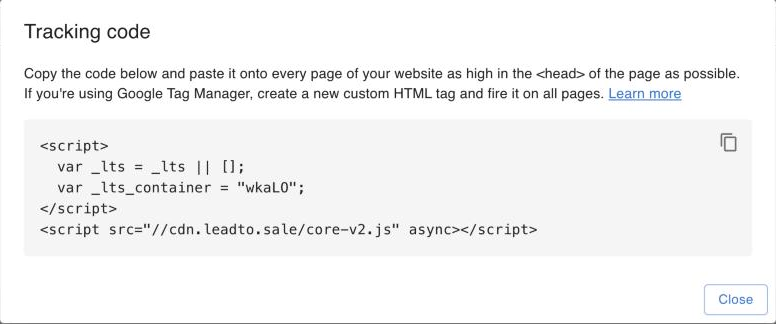
  • Your container snippet
  • You can install the container snippet using Google Tag Manager.
    • Create a new custom HTML tag, paste your container snippet, and add the all pages trigger.
  • You can also hard-code the container snippet into your website.
  • The Set up assistant in the sidebar walks you through installing the snippet and creating your first tracker.

Testing your installation

  • Click “Test tracking” in Container settings > Basic details and enter your website URL.
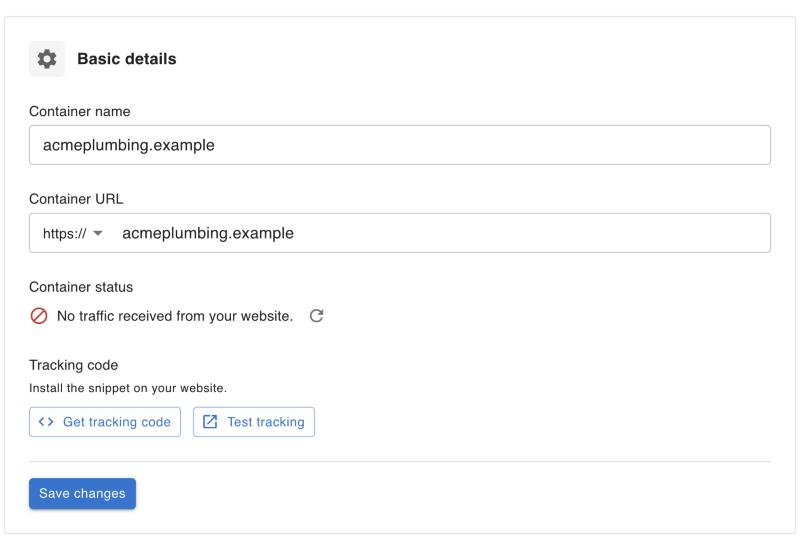
  • Get tracking code and test tracking buttons in container settings
  • Your website opens with your container loaded, so you can check number replacements and form tracking before (or after) installing the snippet.
  • Once the snippet is live, the container status in Basic details shows the date your container last received traffic from your website.
The container snippet works just like a Google Analytics tag. Find your snippet in Container settings > Basic details > “Get tracking code”. You can install the container snippet using Google Tag Manager. Create a new custom HTML tag, paste your container snippet, and add the all pages trigger. You can also hard-code the container snippet into your website. The Set up assistant in the sidebar walks you through installing the snippet and creating your first tracker. Testing your installation Click “Test tracking” in Container settings > Basic details and enter your website URL. Your website opens with your container loaded, so you can check number replacements and form tracking before (or after) installing the snippet. Once the snippet is live, the container status in Basic details shows the date your container last received traffic from your website.