Call trackers

  • Call trackers capture inbound calls to tracking phone numbers and attribute them to website visits.
  • You can track which marketing sources (Google Ads, Facebook, organic search, etc.) drove phone call leads.
  • The system works by dynamically swapping phone numbers on your website based on traffic source, then matching calls to the last recorded web session.

Creating a call tracker

  • Navigate to the ‘Trackers’ section of your container using the top menu.
  • Click the “CALL TRACKER” button to create a new tracker.
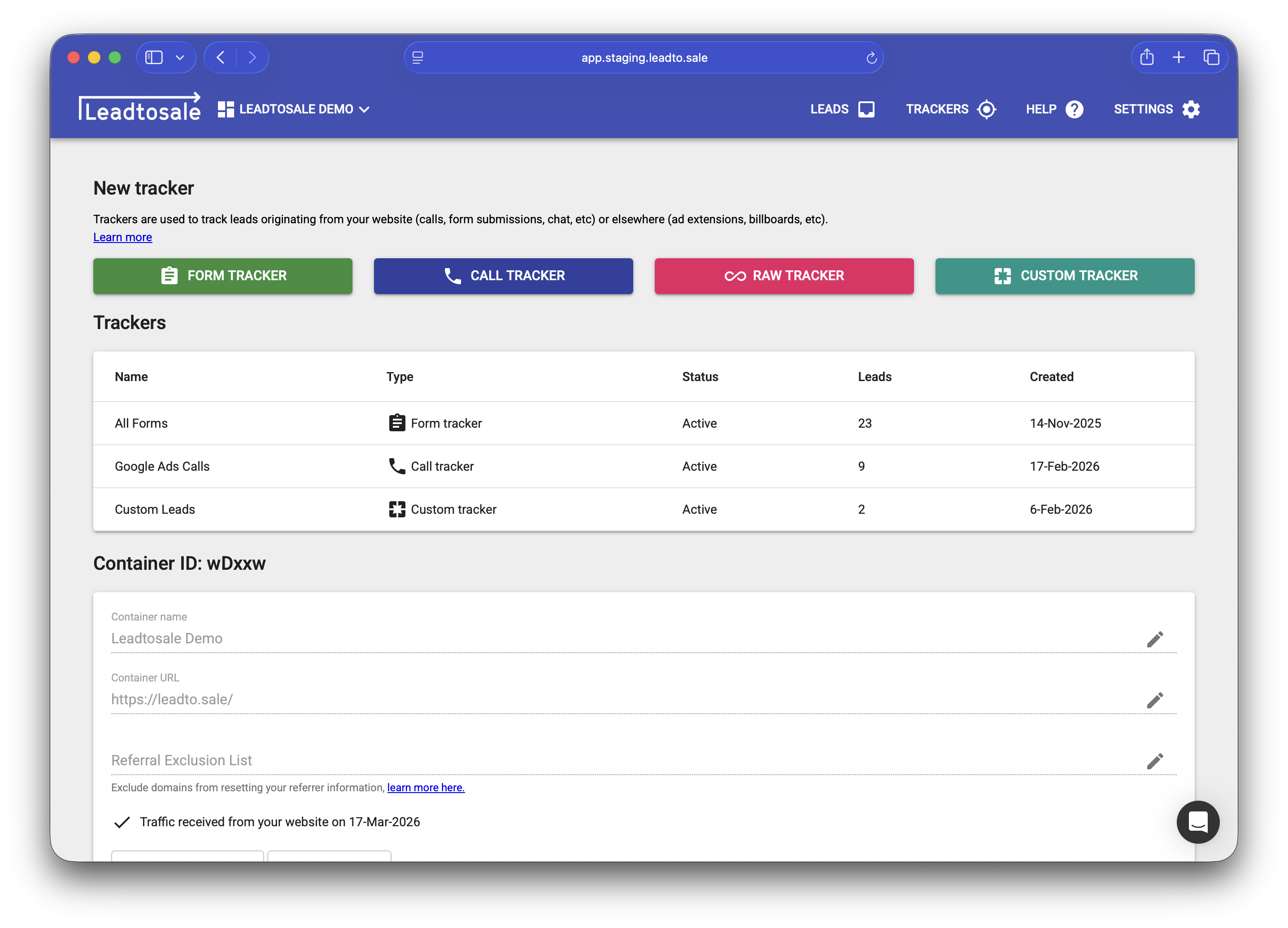
  • Create a new call tracker

Configuration options

Tracker name - A name to identify this tracker. Used to segment leads.

Destination number - The phone number where calls will be forwarded. Include country code (+64, +61, +1 etc.), exclude spaces.

Tracker country - The country for purchasing tracking numbers. Cannot be changed after creation.

Number type - Local, toll-free, mobile, or national numbers. Local numbers are recommended for most use cases.

Match calls to web visits - Keep enabled for online tracking. Disable only if using the number for offline sources (e.g., print ads).

Swap for - Determines when your tracking number is displayed: - All sessions - Shows tracking number for every visitor. - Google Ads - Shows when a Google click ID (gclid) is present. Requires auto-tagging enabled. - Facebook Ads - shows when a Facebook click ID (fbclid) is present. - Landing page URL contains - Shows when URL contains specific text (e.g., msclkid= for Microsoft Ads). - Referrer contains - Shows based on referrer domain (e.g., .google. for all Google traffic). - Custom - Advanced rules (contact support if you need this).

Step 1 in creating your call tracker

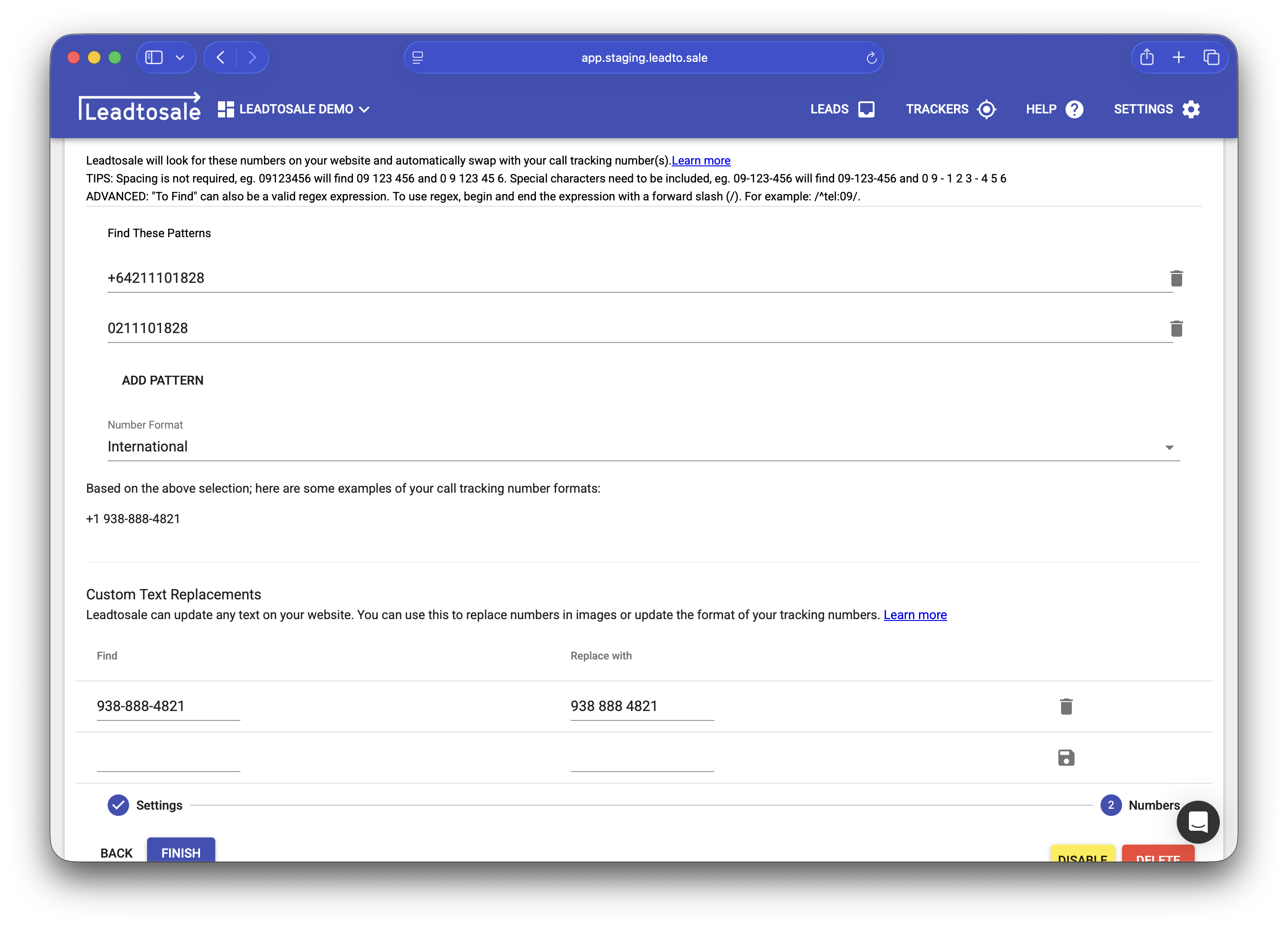
Number replacements

  • The system finds and replaces your destination number with tracking numbers automatically.
  • Use “Number Rotation” settings to configure custom find patterns and display formats.
  • Text replacements can modify how numbers appear (e.g., change 09-123-456 to 09 123 456 by replacing ‘-’ with ’ ‘).
  • Number replacements.

Advanced options

Call recording - Record all inbound calls for playback in the lead dashboard.

Call whisper message - A brief message played to the person answering (e.g., “Call from Google Ads”). Callers hear ringing during this message. Limit: 100 characters.

Caller message - A message played to callers before being connected (e.g., “All calls are recorded”). Limit: 100 characters.

Alert users - Send email notifications to specified users when new leads arrive.

Reconciliation time limit - How long to look back when matching calls to web sessions (in minutes). Default: 30 minutes.

Source and Medium fallbacks - Allows you to add a source or medium to leads in the Leadtosale dashboard when once can’t be captured from the lead e.g. for Google call extensions.

Caller tracker advanced options

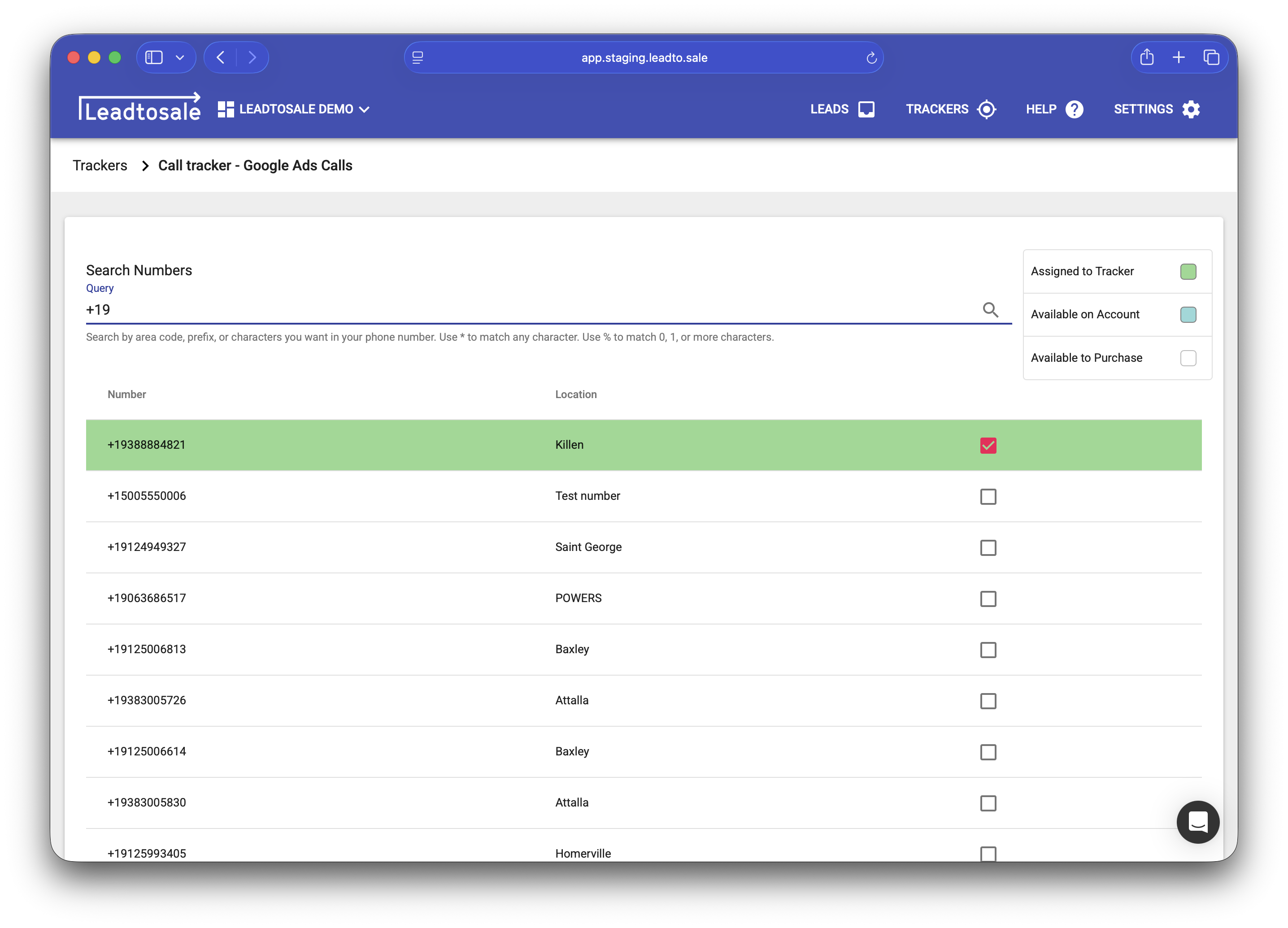
Purchasing numbers

  • After configuration, search for and purchase tracking numbers.
  • Numbers are filtered by country and type.
  • Previously purchased numbers can be reassigned to new trackers.
  • Searching for call tracking numbers.

Testing

  • Always test number replacements and conditions before going live.
  • Use Google Tag Manager with the Tag Manager Injector Chrome extension for local testing.
  • Verify that tracking numbers appear correctly and calls are being attributed.
Call trackers capture inbound calls to tracking phone numbers and attribute them to website visits. You can track which marketing sources (Google Ads, Facebook, organic search, etc.) drove phone call leads. The system works by dynamically swapping phone numbers on your website based on traffic source, then matching calls to the last recorded web session. Creating a call tracker Navigate to the ‘Trackers’ section of your container using the top menu. Click the “CALL TRACKER” button to create a new tracker. Configuration options Tracker name - A name to identify this tracker. Used to segment leads. Destination number - The phone number where calls will be forwarded. Include country code (+64, +61, +1 etc.), exclude spaces. Tracker country - The country for purchasing tracking numbers. Cannot be changed after creation. Number type - Local, toll-free, mobile, or national numbers. Local numbers are recommended for most use cases. Match calls to web visits - Keep enabled for online tracking. Disable only if using the number for offline sources (e.g., print ads). Swap for - Determines when your tracking number is displayed: - All sessions - Shows tracking number for every visitor. - Google Ads - Shows when a Google click ID (gclid) is present. Requires auto-tagging enabled. - Facebook Ads - shows when a Facebook click ID (fbclid) is present. - Landing page URL contains - Shows when URL contains specific text (e.g., msclkid= for Microsoft Ads). - Referrer contains - Shows based on referrer domain (e.g., .google. for all Google traffic). - Custom - Advanced rules (contact support if you need this). Number replacements The system finds and replaces your destination number with tracking numbers automatically. Use “Number Rotation” settings to configure custom find patterns and display formats. Text replacements can modify how numbers appear (e.g., change 09-123-456 to 09 123 456 by replacing ‘-’ with ’ ‘). Advanced options Call recording - Record all inbound calls for playback in the lead dashboard. Call whisper message - A brief message played to the person answering (e.g., “Call from Google Ads”). Callers hear ringing during this message. Limit: 100 characters. Caller message - A message played to callers before being connected (e.g., “All calls are recorded”). Limit: 100 characters. Alert users - Send email notifications to specified users when new leads arrive. Reconciliation time limit - How long to look back when matching calls to web sessions (in minutes). Default: 30 minutes. Source and Medium fallbacks - Allows you to add a source or medium to leads in the Leadtosale dashboard when once can’t be captured from the lead e.g. for Google call extensions. Purchasing numbers After configuration, search for and purchase tracking numbers. Numbers are filtered by country and type. Previously purchased numbers can be reassigned to new trackers. Testing Always test number replacements and conditions before going live. Use Google Tag Manager with the Tag Manager Injector Chrome extension for local testing. Verify that tracking numbers appear correctly and calls are being attributed.
Need more help?

Can't find what you're looking for? Our team is here to help.

Contact Support