Form trackers

  • Form trackers automatically detect and capture form submissions from your website.
  • All form data is captured including hidden fields, along with attribution data (UTM parameters, cookies, referrer).
  • Works with most form types including contact forms, lead capture forms, and custom forms.

Creating a form tracker

  • Navigate to the ‘Trackers’ section of your container using the top menu.
  • Click the “FORM TRACKER” button to create a new tracker.
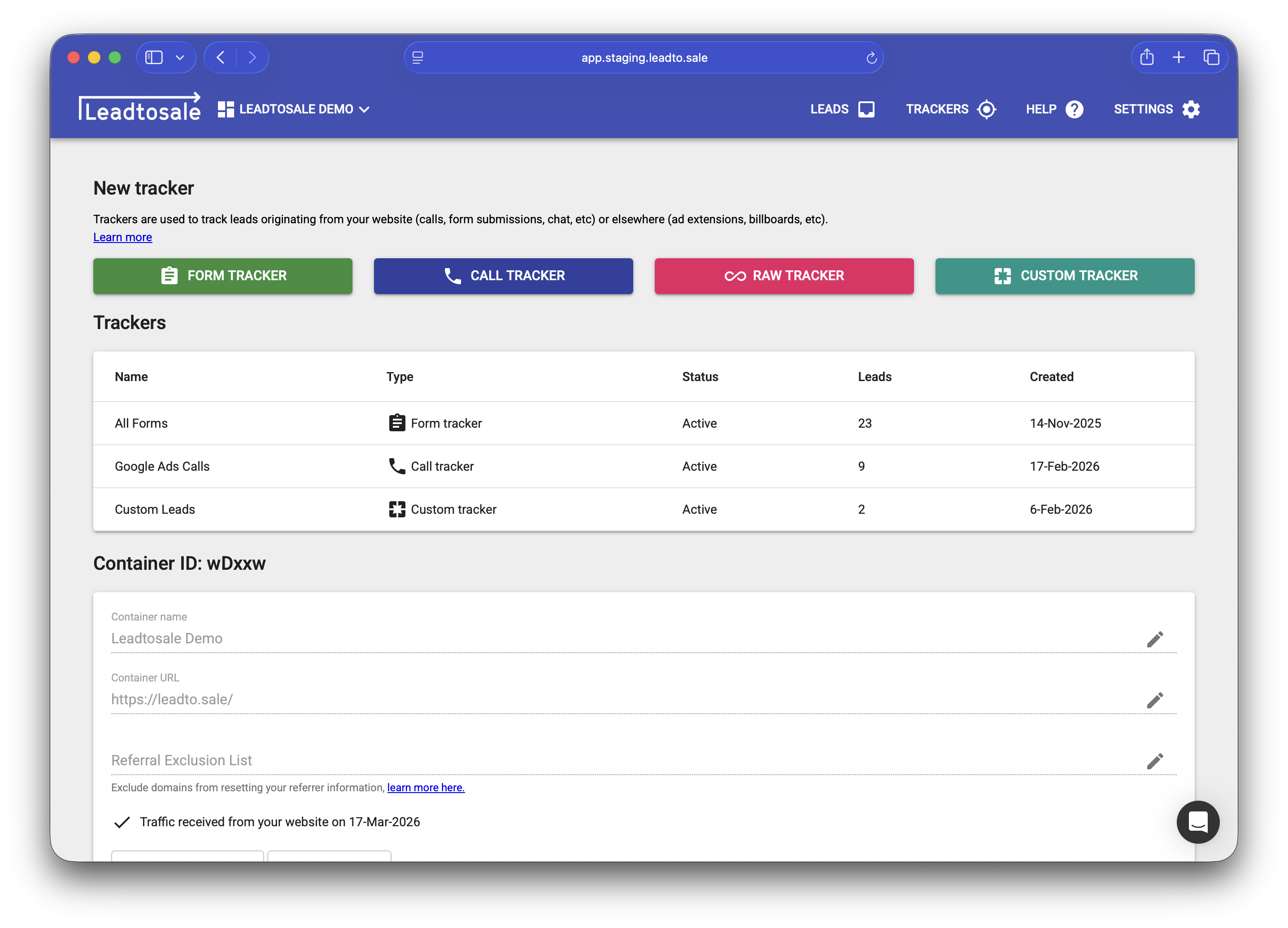
  • Create a new form tracker

Configuration options

Tracker name - A name to identify this tracker. Used to segment leads.

Selector - CSS selector to target specific forms. Leave blank to track all forms on the page. - Example: #contact-form for a form with id “contact-form”. - Example: .lead-form for forms with class “lead-form”.

Require email - Marks leads without email addresses as invalid.

Validation options

Form trackers can detect successful submissions in three ways:

Leave them blank - Will track all form submit events regardless of whether a thank you page or submit success message is shown. This is the default.

Thank you URL - Detect success when the page URL changes to a specific pattern. - Example: /thank-you or /contact/success

Success selector - Detect success when a specific element appears on the page. - Example: .success-message or #form-success

Data captured

  • All form field values (including hidden fields)
  • Email and phone extraction
  • Google Analytics cookies (GA and GA4)
  • Facebook tracking cookies (fbc, fbp)
  • UTM parameters (source, medium, campaign, term, content)
  • Google Click IDs (gclid, dclid)
  • Referrer URL
  • Device and browser information
  • IP address and geolocation

Alert users

  • Send email notifications to specified users when new leads arrive.

Integration options

  • Send to Google Analytics - Automatically send lead events to GA4.
  • Send to Facebook - Send lead events via Conversions API.

Testing

  • Submit a test form and verify the lead appears in your dashboard.
  • Check that all expected fields are captured.
  • Verify attribution data is correctly attributed.
Form trackers automatically detect and capture form submissions from your website. All form data is captured including hidden fields, along with attribution data (UTM parameters, cookies, referrer). Works with most form types including contact forms, lead capture forms, and custom forms. Creating a form tracker Navigate to the ‘Trackers’ section of your container using the top menu. Click the “FORM TRACKER” button to create a new tracker. Configuration options Tracker name - A name to identify this tracker. Used to segment leads. Selector - CSS selector to target specific forms. Leave blank to track all forms on the page. - Example: #contact-form for a form with id “contact-form”. - Example: .lead-form for forms with class “lead-form”. Require email - Marks leads without email addresses as invalid. Validation options Form trackers can detect successful submissions in three ways: Leave them blank - Will track all form submit events regardless of whether a thank you page or submit success message is shown. This is the default. Thank you URL - Detect success when the page URL changes to a specific pattern. - Example: /thank-you or /contact/success Success selector - Detect success when a specific element appears on the page. - Example: .success-message or #form-success Data captured All form field values (including hidden fields) Email and phone extraction Google Analytics cookies (GA and GA4) Facebook tracking cookies (fbc, fbp) UTM parameters (source, medium, campaign, term, content) Google Click IDs (gclid, dclid) Referrer URL Device and browser information IP address and geolocation Alert users Send email notifications to specified users when new leads arrive. Integration options Send to Google Analytics - Automatically send lead events to GA4. Send to Facebook - Send lead events via Conversions API. Testing Submit a test form and verify the lead appears in your dashboard. Check that all expected fields are captured. Verify attribution data is correctly attributed.
Need more help?

Can't find what you're looking for? Our team is here to help.

Contact Support